
Resources
How to Cast Jalalive to Your TV With Chromecast and Mirroring
Cast Jalalive from your Android phone to a TV with Chromecast or screen mirroring: step-by-step setup, keeping the connection stable, picture tips, and fixes when casting fails.
Casting is the bridge between the app in your hand and the screen everyone can see. With Chromecast or built-in mirroring, Jalalive's fixtures and match information move from phone to television in seconds, and match day becomes a shared event instead of a private scroll. You can find the current download on the Jalalive APK download page.
The technology is mature but fussy about details: the same Wi-Fi network, a phone that is not aggressively saving battery, and a TV input that is actually the one you think it is. Most casting failures are one of those three in disguise.
This guide sets casting up step by step, keeps the connection stable through a full match, and runs through the fixes in the order they actually solve problems.
Before You Cast: The Three Checks
Confirm the phone and the Chromecast or TV are on the same Wi-Fi network; guest networks and router band splits are the most common silent blockers.
Make sure the television is on the correct input for its casting device, especially with external Chromecast sticks sharing a crowded HDMI row.
Charge the phone or plug it in, because casting for a full match alongside live information is steady battery work.
Cast Step by Step
Open Jalalive and get the screen you want to share ready first, so the TV audience sees content, not your setup process.
Start casting from the phone's cast or screen sharing control, choose the television, and wait for the connection to settle before judging the picture.
Once connected, navigate calmly; rapid app switching is the easiest way to make a mirrored picture stutter.
Keep the Connection Stable
Keep the phone in the same room as the router's good signal where possible, and avoid burying it under cushions or coats mid-match, a comic but real cause of dropouts.
Close heavy background downloads on the phone and pause other casting or streaming fights over the same network.
If the picture degrades, dropping to a calmer use, fixtures and information screens rather than fast scrolling, usually restores smoothness instantly. You can explore this in more depth in the Performance Optimization Guide.
Sound, Picture and Comfort
Route audio through the TV so the room shares one sound source, and check for echo if the phone keeps playing its own audio in mirror mode.
Set the TV picture mode to its standard or game setting to reduce delay, and raise text-friendly sharpness slightly for fixtures and standings.
Remember the phone is now a remote control for the room: agree who holds it, or every change of screen becomes a small negotiation.
- Same Wi-Fi on phone and TV
- Correct TV input selected
- Phone plugged in for long matches
- Calm navigation keeps mirroring smooth
When Casting Refuses to Work
Restart in order: the app, then the phone's Wi-Fi, then the TV or Chromecast, then the router. Each step fixes a different layer, and skipping to the router first wastes the easy wins.
If the TV never appears as a cast target, another device on the network may be isolating clients; try the router's other band or a direct mirroring mode if your TV offers one.
As a last resort for a must-watch match, a wired connection or the laptop route gets the picture up while you investigate wireless at leisure.
Conclusion
Casting Jalalive is a small ritual with a big payoff: phone in hand, football on the wall, and the whole room following together. Respect the three checks, same network, right input, charged phone, and nearly every failure disappears. For the rest, restart in layers and keep a wired fallback for the nights that matter. Once it works once, it tends to keep working, and the TV becomes the app's second home.
Resources
Related Guides
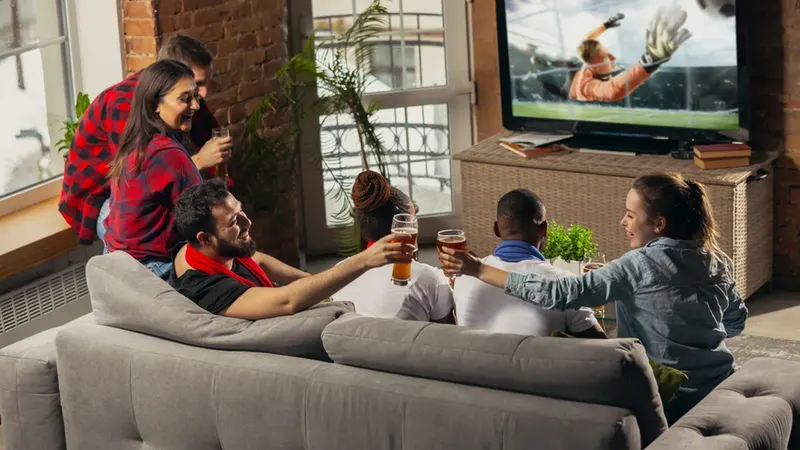
How to Watch Jalalive on Smart TV: Complete Setup Guide
Learn how to watch Jalalive on a smart TV using casting, screen mirroring, Android TV, or an emulator. Follow setup steps, picture tips, and fixes for common TV problems.
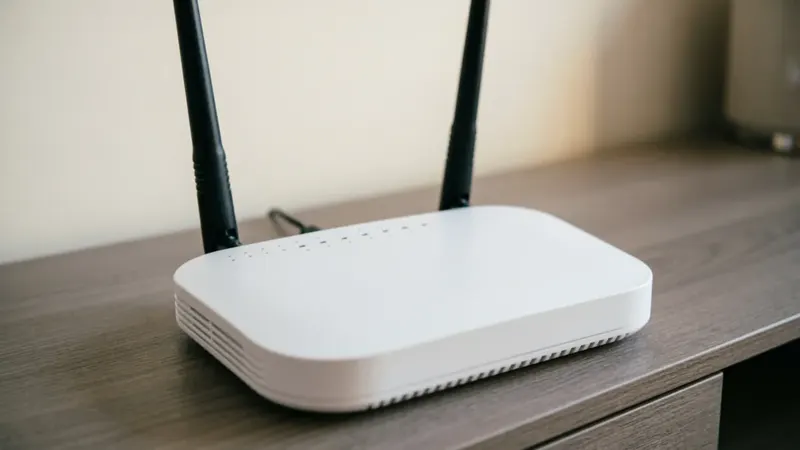
Jalalive Buffering and Playback Problems: Fixes That Work
Fix Jalalive buffering and playback problems with practical steps: checking your connection, clearing cache, updating the app, adjusting device settings, and knowing when the issue is not your phone.
How Much Data Does Jalalive Use? Mobile Data Saving Guide
Understand Jalalive data usage on mobile networks: what uses the most data, how to check consumption in Android settings, and practical tips for following football without draining your plan.