
Resources
How to Use Jalalive on PC and Laptop: Bigger Screen Football Guide
Use Jalalive on a PC or laptop with an Android emulator: installation steps, display and control tips, multitasking with match research, and keeping performance smooth on Windows.
A laptop is many fans' real command centre: fixtures on one side of the screen, a chat with friends on the other, and the match itself on the television. Running Jalalive on a PC puts the app into that workflow instead of leaving it isolated on the phone. You can find the current download on the Jalalive official site page.
Because Jalalive is an Android app, the PC route runs through an emulator, a virtual Android device inside Windows. Set up well, it feels unremarkable in the best way: the same app, on a bigger screen, with a keyboard and mouse.
This guide covers choosing and installing an emulator, getting Jalalive running inside it, using keyboard and multitasking to your advantage, and the performance settings that keep everything smooth.
Choose an Emulator and Install It
Pick a reputable Android emulator that matches your version of Windows and your computer's strength, and download it only from its official website.
Install it like ordinary Windows software, sign in so its app store works, and let it finish its first boot and updates before installing anything.
A wired internet connection during setup avoids the half-downloaded states that cause strange first-run problems.
Install Jalalive Inside the Emulator
With the virtual device running, install Jalalive the same way you would on a phone, then open it once and let it settle before changing display settings.
Sign in and set up your usual preferences now, while the keyboard makes any typing fast and painless. You can explore this in more depth in the How to Download and Install Jalalive APK on Android.
Use the Bigger Screen Properly
A laptop display rewards side-by-side working: Jalalive's fixtures and information in one window, your notes, messages, or a browser in another.
Increase the emulator's window or resolution until fixture text is effortless to read, then stop; pushing resolution higher than the screen needs only costs performance.
Keyboard shortcuts inside the emulator, and a mouse with a scroll wheel, make browsing categories noticeably quicker than tapping.
Keep Performance Smooth
Allocate the emulator a sensible share of memory and processor cores in its settings; too little starves the app, too much starves Windows.
Close heavy background programs during match sessions, and keep graphics drivers updated, because emulators lean on them hard.
If the app stutters in busy screens, lower the virtual resolution one step. Readability survives; the stutter usually does not.
- Updated graphics drivers
- Sensible memory allocation
- Resolution matched to your screen
- Unneeded programs closed
- Wired connection for setup
PC, Phone, or Both?
The phone remains best for alerts, quick checks, and following matches away from home.
The PC shines for planning: reviewing a full fixture week, comparing schedules, and settling in for a multi-match evening at a desk.
Most organised fans end up using both, with the same habits on each, which is exactly how the app is meant to travel.
Conclusion
Jalalive on a PC is not a different product; it is the same football companion given a desk, a keyboard, and room to breathe. Install a reputable emulator carefully, set resolution for readability, give it a fair share of your computer's power, and the app becomes part of your match-week workflow. Phone for the pocket, laptop for the planning, and the fixtures never leave your sight.
Resources
Related Guides


How to Watch Jalalive on Smart TV: Complete Setup Guide
Learn how to watch Jalalive on a smart TV using casting, screen mirroring, Android TV, or an emulator. Follow setup steps, picture tips, and fixes for common TV problems.
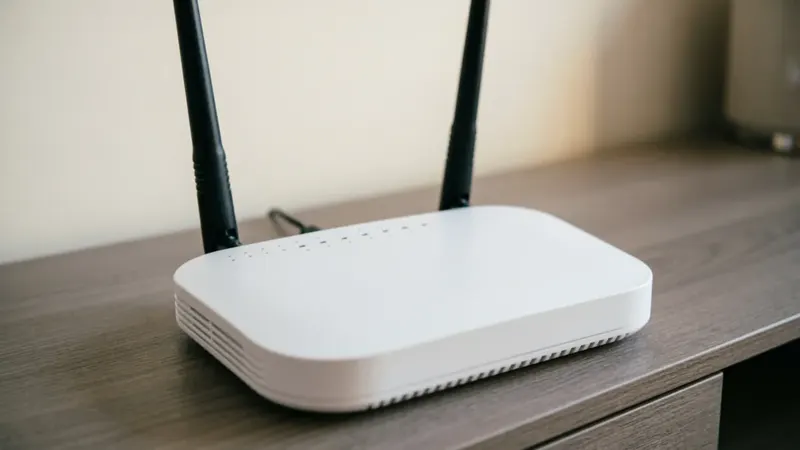
Jalalive Buffering and Playback Problems: Fixes That Work
Fix Jalalive buffering and playback problems with practical steps: checking your connection, clearing cache, updating the app, adjusting device settings, and knowing when the issue is not your phone.
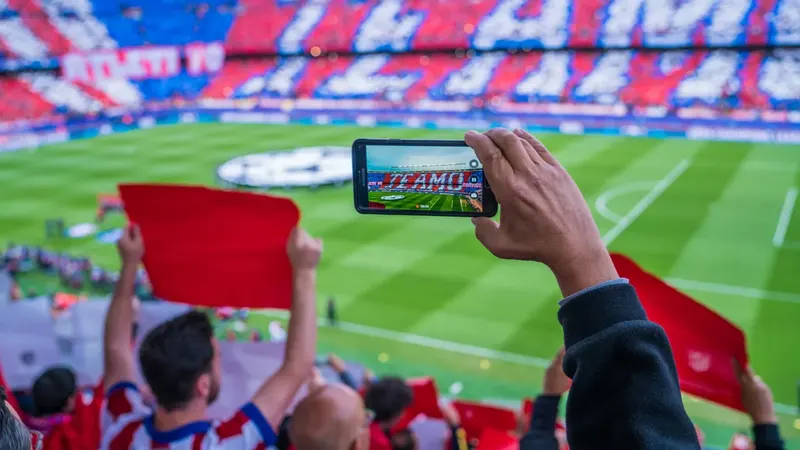
How Much Data Does Jalalive Use? Mobile Data Saving Guide
Understand Jalalive data usage on mobile networks: what uses the most data, how to check consumption in Android settings, and practical tips for following football without draining your plan.